
Notifications
Receive sync status, daily reminders, and other notifications via LINE / Discord / Telegram / Email. First set up a push channel (where to send), then add reminder rules (which events to send). The in-app notification bell needs no setup — everyone gets it.
Notifications are store-wide, not a personal preference — every manager/owner of the store sees the same channels and rules. Manager permission required to view and configure this page.
 12
12Add a push channel
In the Push Channels section, click Add Channel (top right).
Enter a Name (e.g. Manager LINE) and pick a Type: LINE Messaging API, Discord Webhook, Telegram Bot, or Email.
Fill in the credentials for that type:
- LINE: Channel Access Token + Target userId or groupId. These two are the easiest to get wrong — compare with the annotated screenshot below (labels in Traditional Chinese):
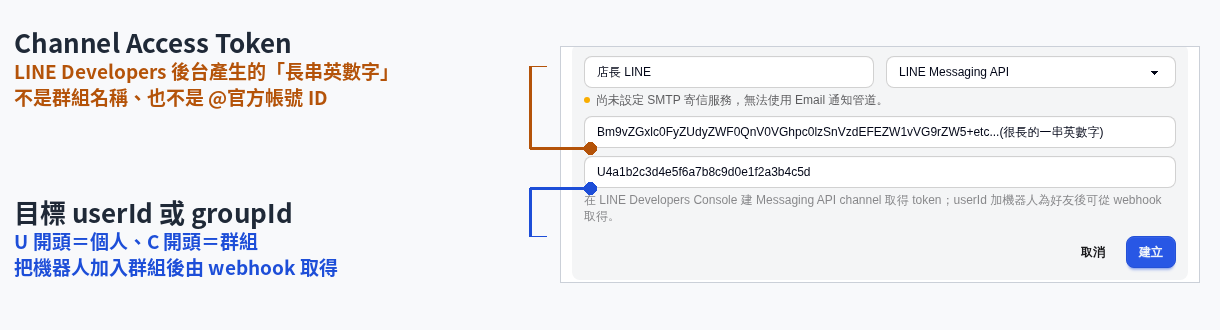 - **Discord**: Webhook URL. - **Telegram**: **Bot Token** + **Chat ID** (forum groups also need the optional **Topic ID**). - **Email**: just **Recipient emails (separate multiple with commas or new lines)** — no credentials needed.
 Click Create.
See the in-form hints for how to obtain each provider's credentials. Channel credentials are stored encrypted. Email is selectable only when an SMTP mail service is configured server-side. Otherwise the option is greyed out with "No SMTP mail service is configured, so the Email channel is unavailable." — a system administrator has to set this up on the server; it can't be changed from this page.
Test or delete a channel
- Click Test at the right of a channel row to send a test message immediately; the page shows Test send succeeded or the failure reason.
- Click the trash icon to delete the channel.
Deleting a channel also breaks any reminder rule bound to it; you'll be asked to confirm first.
Add a reminder rule
- In the Reminder Rules section, click Add Rule (disabled until at least one channel exists).
- Pick a Reminder Type — there are four:
- Daily unclosed reminder: the day hasn't been closed yet (scheduled).
- Recurring expense due reminder: rent, utilities and other recurring costs are due to be recorded (scheduled).
- Credential expiry alert: a delivery platform login expired and sync stopped (event-driven).
- Schedule published notice: a shift schedule was published (event-driven).
- Scheduled types reveal a cron Schedule field — apply a preset (Daily 21:00, Daily 09:00, Daily 22:00, or 1st of month 09:00).
- Under Push to channels (multi-select), check at least one channel, then click Create.
Scheduled types take effect immediately after saving; event types are triggered by events and need no schedule — their schedule column reads
event-driven. Use the Enabled toggle on a rule row to turn it on or off anytime; click the trash icon to delete it.
Check push records
At the bottom, Last 20 push records lists each push's Time, Type, Title, and Status (Sent / Failed); click ↺ at the top right to refresh.
The notification bell (in-app inbox)
The same notifications also land in the in-app inbox, which works without any channel setup and is available to all staff.
- Click the bell next to the current store in the sidebar (top right of the header on mobile). A red count sits on the bell when you have unread items; over 99 it shows
99+. - The panel lists recent notifications; unread ones carry a blue dot and a tinted background. When more than one kind is present, filter buttons appear at the top alongside All.
- Clicking a notification jumps to the related page (schedule published → Schedules, daily unclosed / recurring expense → Finance, credential expired → Sync settings).
- Click Mark all read at the top right to clear the unread count.
The unread count doesn't clear itself — opening the panel isn't enough, use Mark all read. The inbox is per store and reloads when you switch stores. It doesn't poll, so it refreshes when you reload the page or change stores. Managers and owners see a Notification settings link at the bottom of the panel that opens this page; regular staff don't.