
HR Settings
One place for the shift templates and staffing thresholds that scheduling relies on, plus shortcuts to attendance and schedule notification settings.
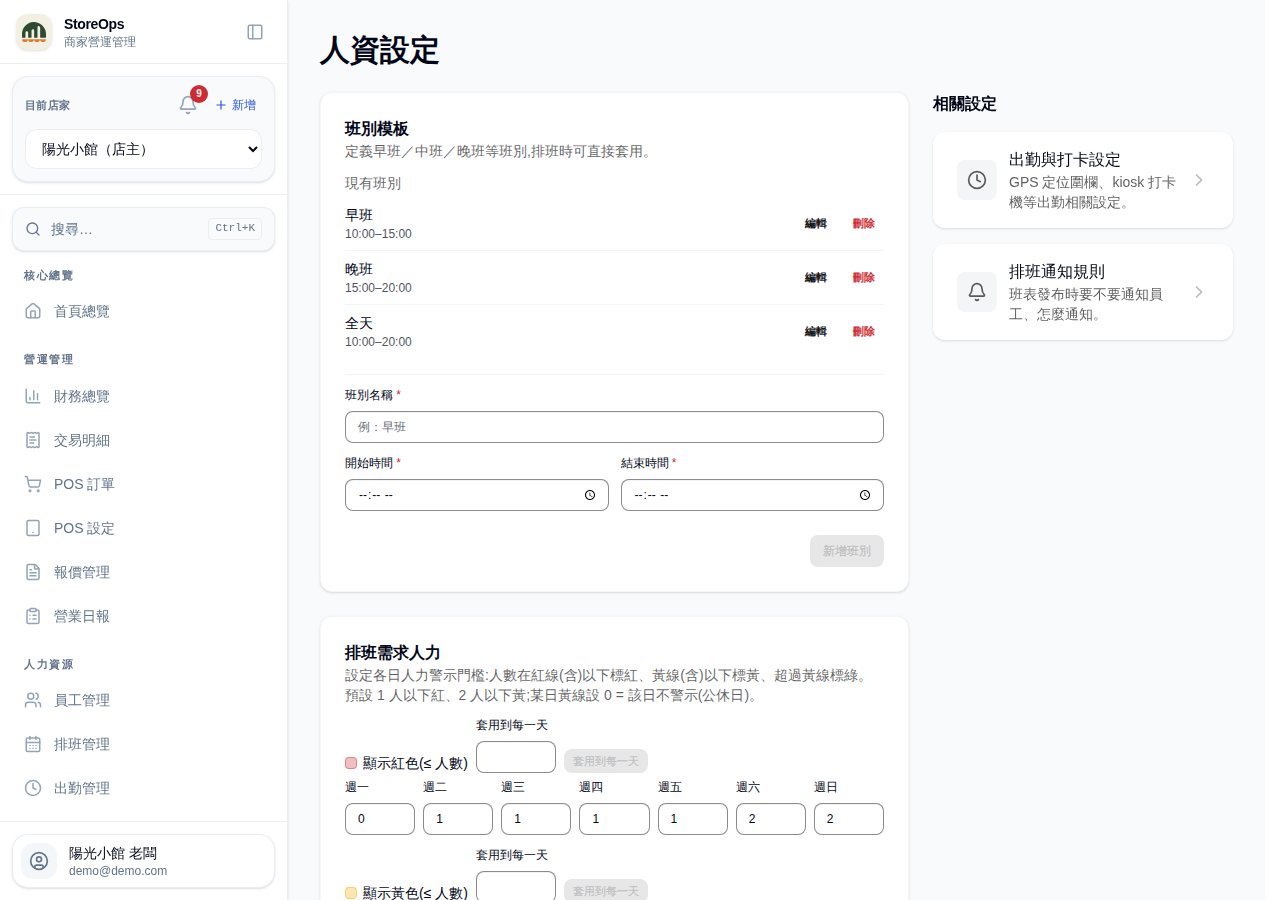
Only managers and owners see this page in the sidebar. Even with the direct link, staff see the shift list without edit buttons, and the Staffing targets section doesn't appear at all.
Maintain shift templates
Shift templates are your recurring blocks — morning, mid, evening — so you don't retype times while scheduling.
- Existing shifts at the top lists each template's name and start–end time, with Edit and Delete on the right.
- Below, fill in Shift name (e.g. Morning), Start time, and End time, then click Add shift.
- Clicking Edit loads the values into the form and the button becomes Update shift; Cancel edit backs out.
Deleting a template does not affect shifts already scheduled — they keep their original times. This is the same list as Shift templates at the top right of the Schedules page; edit it from either place.
Set staffing targets
Staffing targets decide when the Daily staffing row on the Schedules page turns red or yellow.
- On the Show red (≤ staff) row, enter a headcount for each day Monday–Sunday: a day with that many people scheduled or fewer shows red.
- Show yellow (≤ staff) works the same way; anything above the yellow line shows green.
- Each row has a small field plus an Apply to all days button — type a number, click it, and all seven days are filled at once.
- Click Save. Restore defaults puts back the built-in thresholds (red at 1 or fewer, yellow at 2 or fewer).
The red line cannot be higher than the yellow line; saving tells you which weekday is wrong. For a closed day, set that day's yellow line to 0 and it will stop raising alerts. Once saved, head back to Schedules and the Daily staffing colours follow the new thresholds.
Jump to attendance and notification settings
The two cards under Related settings on the right are shortcuts (on phones they sit at the bottom):
- Attendance & clock-in settings — GPS geofence, kiosk clock-in, and other attendance options.
- Schedule notification rules — whether and how to notify staff when a schedule is published.
To have the team notified when you publish, open Schedule notification rules and add a Schedule published notice rule bound to a channel. Without it, publishing sends nothing.