
Feedback Tracking
Log every compliment, complaint, and suggestion from customers, and track each one until it's handled — so nothing gets lost after being passed along verbally.
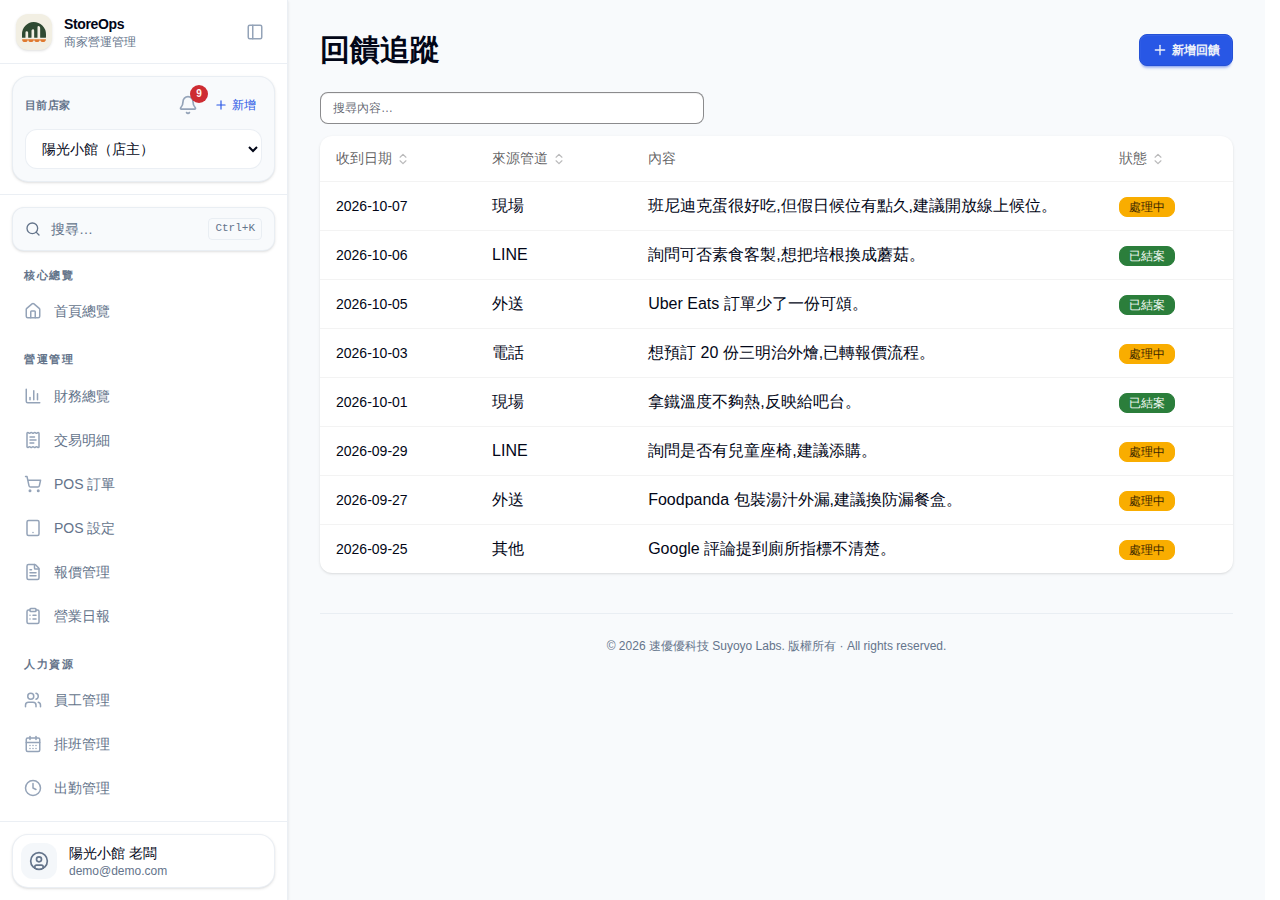
Add a feedback entry
- Open Feedback Tracking from the left menu and click Add feedback at the top right.
- Received date defaults to today; change it if you're logging something after the fact.
- Pick a Channel: On-site, LINE, Phone, Delivery, or Other.
- Write what the customer said under Content (required). Keep their own words where you can rather than just your conclusion.
- Click Create. You'll see Feedback added when it's saved.
Adding feedback needs no manager permission — staff can log it on the spot. With Content empty the Create button stays disabled and shows Please enter content.
Browse and search the list
- Each row shows Received date, Channel, Content, and Status.
- There are two statuses: Open (amber) and Resolved (green).
- Use the search box above the list to find wording in the content, or click a column header to sort by date, channel, or status.
- Click any row to open that entry's detail page.
With nothing logged yet you'll see No customer feedback yet. along with an Add first feedback button.
View and edit an entry
- Click a row to open the detail page — status badge, channel, and received date sit across the top, with the full content below.
- Edit at the top right lets you change Received date, Channel, and Content. Click Save when done, or Cancel to discard.
- Delete at the top right removes the entry, asking Delete this feedback? first.
- Use the Feedback Tracking link at the top left to go back to the list.
Editing and deleting both require Manager permission. Staff can open the detail page but won't see the Edit / Delete buttons. If you try to leave mid-edit, you'll be asked You have unsaved changes. Leave anyway?
Resolve and reopen
- Once it's handled, click Resolve on the detail page.
- Fill in the Resolution note (optional) in the dialog — what you did and what changed as a result.
- Click Resolve to submit. The status turns green (Resolved) and your note appears in the Resolution card below; with no note it shows (no resolution note).
- If it turns out the issue isn't really settled, click Reopen to send it back to Open.
Resolving and reopening both require Manager permission. Reopening asks Reopen this feedback? The resolution note will be cleared. — the existing note is wiped, so copy it elsewhere first if you need it.