
Store Management
Configure this store's basic info, logo, timezone and calendar, staff clock-in entry, and manage members and invites. Most settings require Manager permission, the full backup requires Owner permission, and Staff can only view.
 12
12Store Info
The Basic Info card shows Store Name, Phone, and Address as a read-only view; everything you can change is in the cards below.
Store Logo
- In the Store Logo card, pick an image file (square recommended, PNG / JPG, under 5 MB).
- Click Confirm Upload. The logo appears at the top-left of quotations; uploading a new image replaces the existing one.
Manager permission required.
Quote Seals
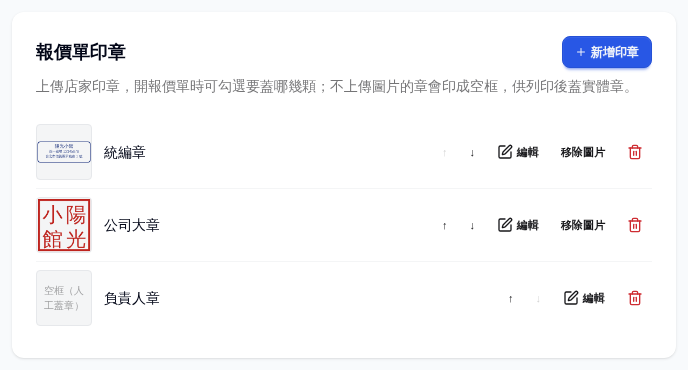
- In the Quote seals card, click Add seal, enter a Seal name (your own wording — e.g. tax-ID seal, company seal, representative seal), and optionally upload a Seal image (PNG / WebP with transparent background, up to 5 MB). Then enter the Actual width (mm): measure the real seal with a ruler and quotes print it at that size (a company seal is often about 40 mm, a personal seal about 15 mm). Without it, every seal is fitted into the same 26 mm square, so a small seal gets enlarged and a wide tax-ID seal shrinks until it is hard to read.
- A seal without an image prints as an empty box on the quotation, for stamping by hand after printing; you can later Edit it to add an image, or Remove image to turn it back into an empty box.
- Use Move up / Move down to set the default order; new quotations pre-select all seals in this order.
- Delete removes a seal; existing quotations are not broken — that seal's box simply no longer appears.
Manager permission required; up to 10 seals per store. After replacing a seal's image, every quotation PDF that includes it shows the new image immediately.
Quotation defaults
What a new quotation starts with. Each quotation can still change these afterwards.
- Prices include tax?: prices excluding tax (common for business customers) add tax on top of the net amount; prices including tax (consumer pricing) work the tax back out of the total. Either way the discount comes off before tax. With a 0% rate, the tax line reads Included or Not included.
- Quotation language: the language the customer's quotation is printed in (Traditional Chinese, Simplified Chinese, English), independent of the interface language. A quotation for a foreign customer can be switched under its More details.
- Default quotation remarks: one remark per line; you can use [Delivery date] [Day of week] [Delivery time] [Delivery address] [Valid until] [Store name] [Quotation No.], which are replaced with the real values on the quotation. A line that uses an empty field isn't printed.
- Click Save at the bottom of the card to save all three. Clear the remarks and save, and new quotations start with no remarks. The delivery time, delivery address and validity date are already printed at the top of every quotation, so remarks only need your own terms.
- Only quotations created afterwards are affected; existing quotations stay as they are.
Manager permission required.
Timezone & Calendar Preferences
- In Timezone, pick a timezone (defaults to Asia/Taipei) and click Save. This affects report display and the date bookkeeping is attributed to.
- In Calendar Preferences, set Week starts on, toggle Show daily amount, and check the Weekly closing days (closing days are auto-marked and not counted as unrecorded).
- Each block has its own Save button — save them separately.
Manager permission required.
LINE Clock-in Entry
- The first time, click Create Entry to generate this store's LINE clock-in link.
- Use Copy to hand the link to staff, or Download QR to print and post it in-store.
- If the link leaks, click Reset Entry to invalidate the old link and issue a new one.
Manager permission required. Staff clock in by scanning the QR with LINE — no system login account needed.
Chrome Extension
- In the Chrome Extension card, click Copy to get the API Key and enter it in the browser extension to auto-capture platform credentials.
- If the key leaks, click Regenerate — the old key stops working immediately.
Manager permission required.
Notifications
Click Go to Settings to open the notifications page and set up LINE / Discord / Telegram for daily reminders and sync failure alerts.
Manager permission required.
Full Backup
Click Download Backup Zip to export all business data (including platform session ciphertext, customer personal data, and uploaded files) as a zip; downloading starts after you confirm.
Owner permission required. The backup contains sensitive data — store it only on an encrypted disk and re-encrypt before sharing.
Member Management
- The Member Management table lists every member; use the dropdown in the Role column to change a member to Staff / Manager / Owner, or click Remove to remove them from the store.
- To invite someone: at the bottom, enter an Email (optional), pick a Role, click Generate Invite Link, and send the link to them.
- Generated but unused invites are listed under Pending Invites, where you can Cancel them.
The invited role decides who can invite: inviting Staff / Manager needs Manager permission, inviting an Owner needs Owner permission. If you fill in an email, the invite is bound to that address and only that person can accept; the link is shown only once and expires after 7 days.
Changing or removing an Owner requires Owner permission; the system always keeps at least one owner, so the last owner can't be removed or demoted.